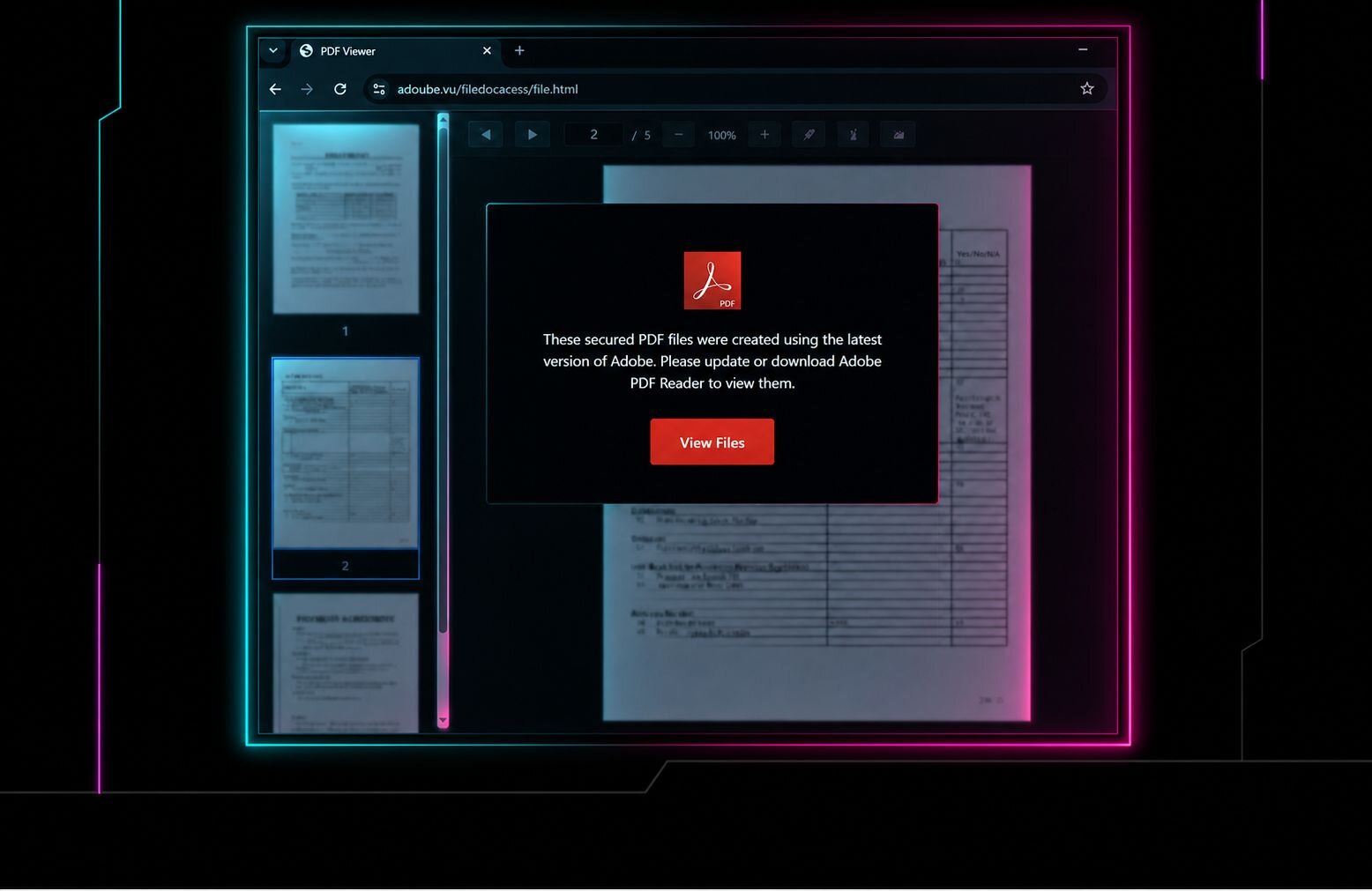



Mandy was stuck at an airport with a few hours to kill. She decided to get her nails done, so she found a spa listed on the airport's website and clicked through. It looked like the spa's real website, on a normal domain with HTTPS, and Chrome showed no warnings.
Then a CAPTCHA popped up. Nothing too unusual there. It asked for a few "verification steps" to ensure she was a human user:
Press and hold Windows key + R
In the verification window, press Ctrl + V
Press Enter
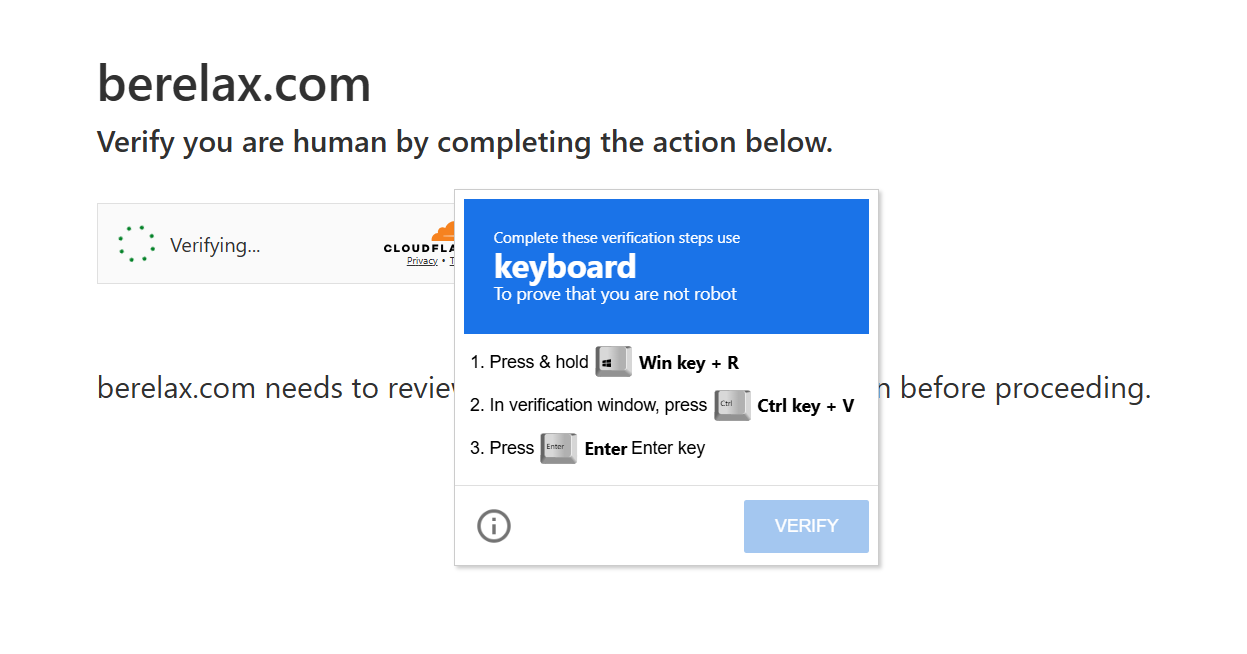
An example ClickFix attack where a user is told to press "Windows Key + R" and paste a command into the Run dialog that opens.
But this simple sequence of hotkeys actually opens the Windows Run dialog, and in this case, would have pasted a malicious PowerShell command that the webpage quietly copied to the clipboard. (The Windows Run dialog is a small box that lets you type a command or program name and run it right away.)
If Mandy pressed Enter, the command would have downloaded and run a file from the internet. That file sets up persistence through a registry key, installs a remote access trojan, and steals the browser's saved passwords, cookies, and credit card details.
This is not a hypothetical example. This actually happened to a Huntress employee (name changed for privacy). Thankfully, she realized what was going on and didn't get pwned. A LOT of people aren't so lucky. So, this post is about one simple idea: what if "Windows key + R" didn't open anything at all?
What is ClickFix, and why is it everywhere?
ClickFix is a simple social engineering attack that tricks users into running malicious commands they don't understand. It often employs messaging related to fixing a problem, hence the name "ClickFix."
It also works very well. Our 2026 Cyber Threat Report linked ClickFix and fake CAPTCHA scams to over half of all malware loader activity. In our own SOC, ClickFix-style Run dialog attacks now account for 31% of EDR SOC signals.
The lures keep changing: fake Windows Update screens, fake Docker ads, compromised small-business websites, and now malicious AI chatbots. But the classic version almost always ends the same way, with Windows key + R.
Most of your users should never open the Run dialog
Here's what makes this so frustrating. The Run dialog is a power-user shortcut. IT folks love it. Most employees have never opened it on purpose and wouldn't know what to type into it if they did.
We've seen this play out in the data. Across organizations in ESPM Early Access, it's common to see 90% or more of users who never use the Run dialog at all. Which is why they don't recognize the commands they are pasting in as being a problem.
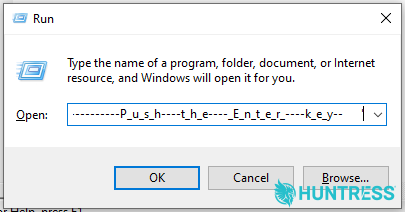
Run dialog box on Windows in which a user has pasted a malicious command, unwittingly copied from a ClickFix attack.
That's a big gap. A feature almost nobody needs is the starting point for nearly a third of what our EDR SOC investigates. Detection still matters, and Huntress Managed EDR's Attack Disruption engine can kill many ClickFix chains in under a second. But when the attack depends on a feature your users don't need, the simplest fix is to turn that feature off. If only there was an easy way to do that…Oh, wait, now there is!
Introducing Attack Reduction
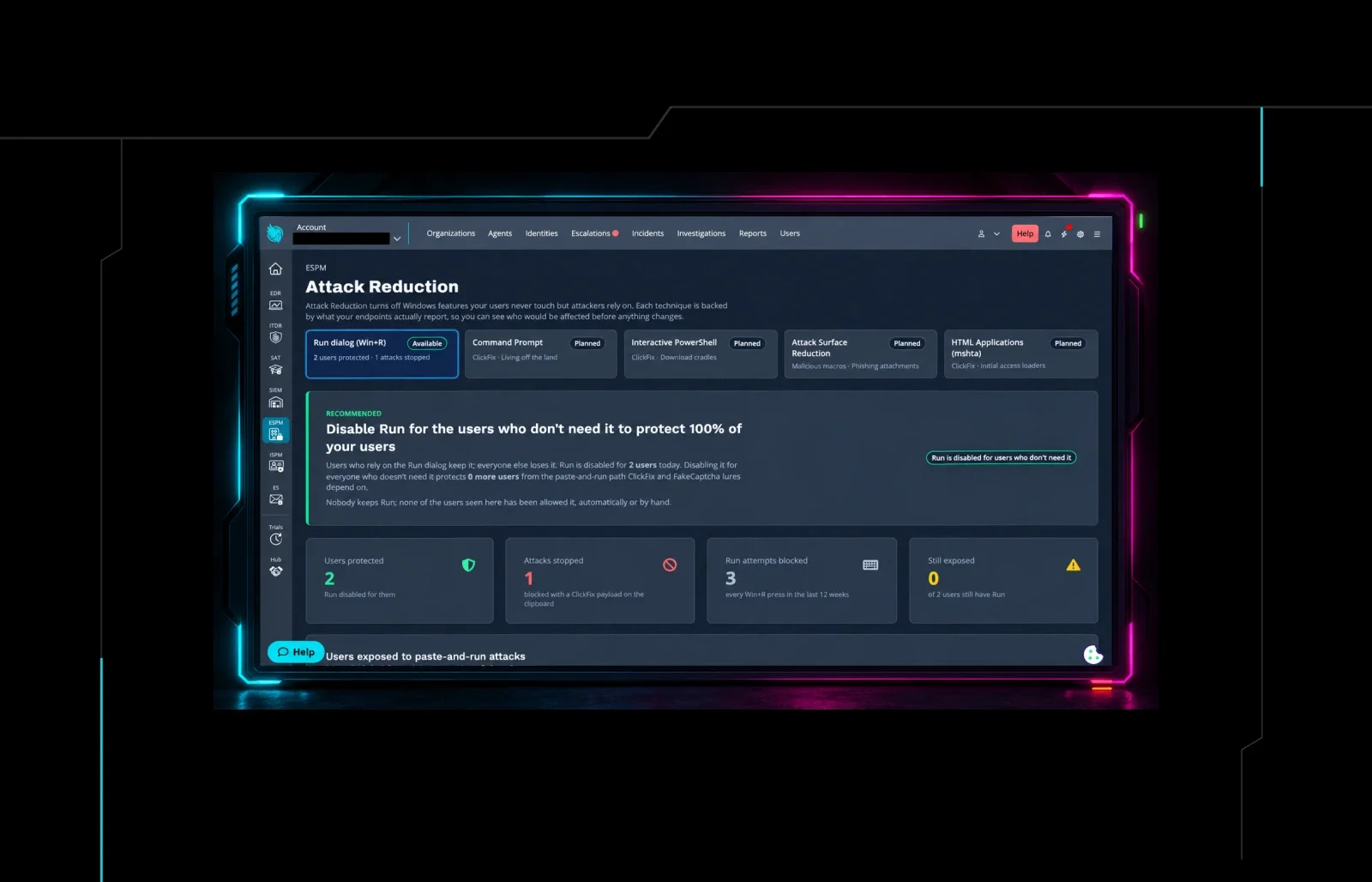
Attack Reduction is a new capability in Huntress Managed ESPM that turns off Windows features your users never touch, but attackers rely on, starting with "Windows key + R". That fits what ESPM is built to do: harden your endpoints before an attack ever starts.
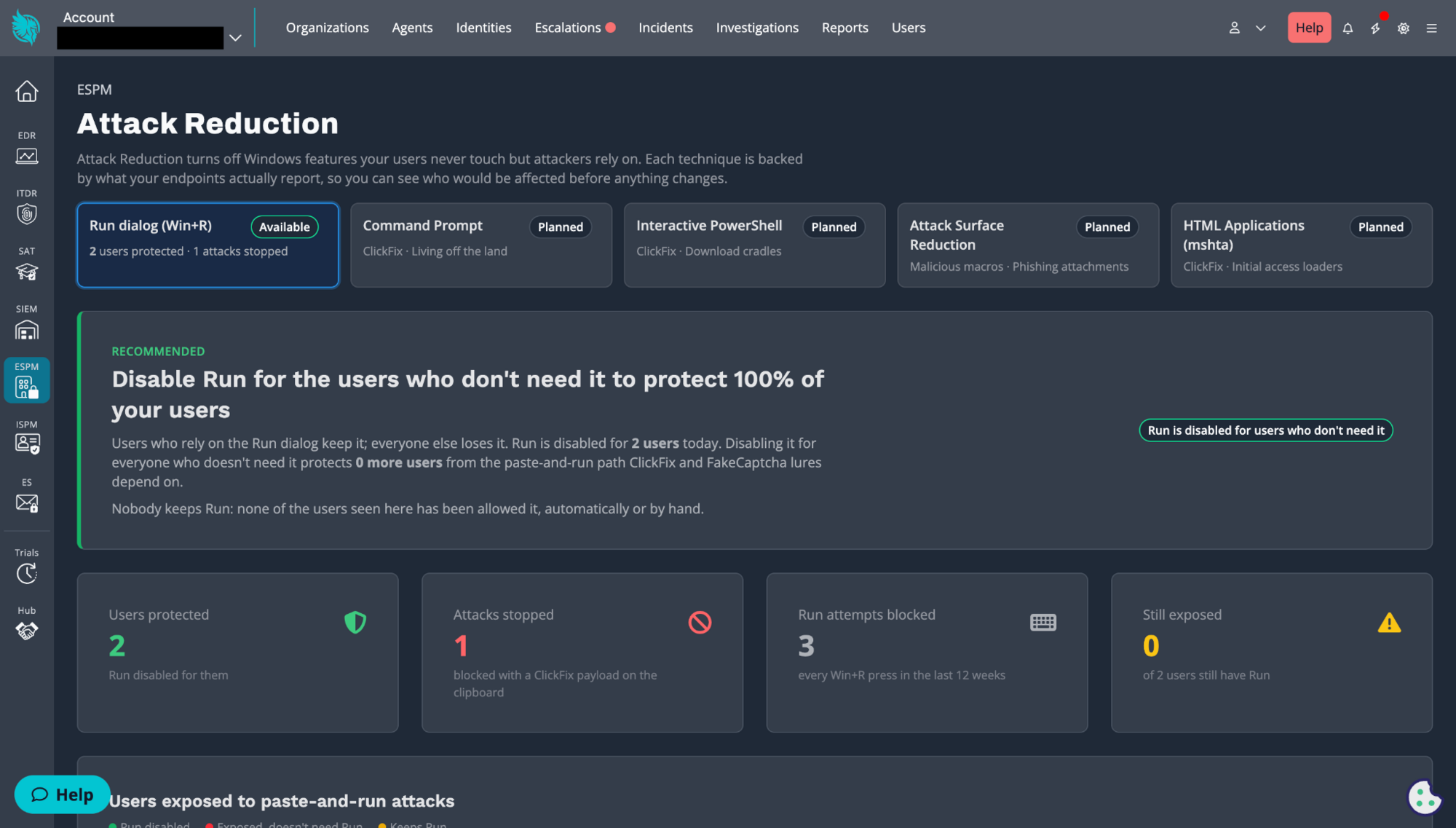
ESPM Attack Reduction dashboard
We're starting with the Run dialog, because that's where ClickFix starts. More controls are coming:
Available now: Blocking the Run dialog for users who don't need it to disrupt "Windows key + R" attacks.
Planned: Command Prompt restrictions for users who don't use
cmd.exe.Planned: Interactive PowerShell restrictions for users who don't use it.
Planned: Windows Attack Surface Reduction (ASR) rules that stop Office, script, and email apps from launching or injecting payloads.
Planned: Blocking HTML applications (mshta) for users who don't use them.
How Attack Reduction works
The hard part of turning off a Windows feature isn't flipping the switch. It's knowing who will be affected and not breaking legitimate workflows. Attack Reduction is designed with the following in mind.
1. See who actually uses the Run dialog
Once ESPM is on, Attack Reduction collects each user's Run dialog history and builds a baseline. On the Attack Reduction dashboard, you can see which users rely on the Run dialog and which never touch it, across your whole account or one organization at a time. You'll know exactly who would be affected before anything changes.
The dashboard also flags commands in a user's Run history that look like ClickFix. Windows doesn't record when those commands ran, so treat them as a reason to investigate rather than proof of an active attack.
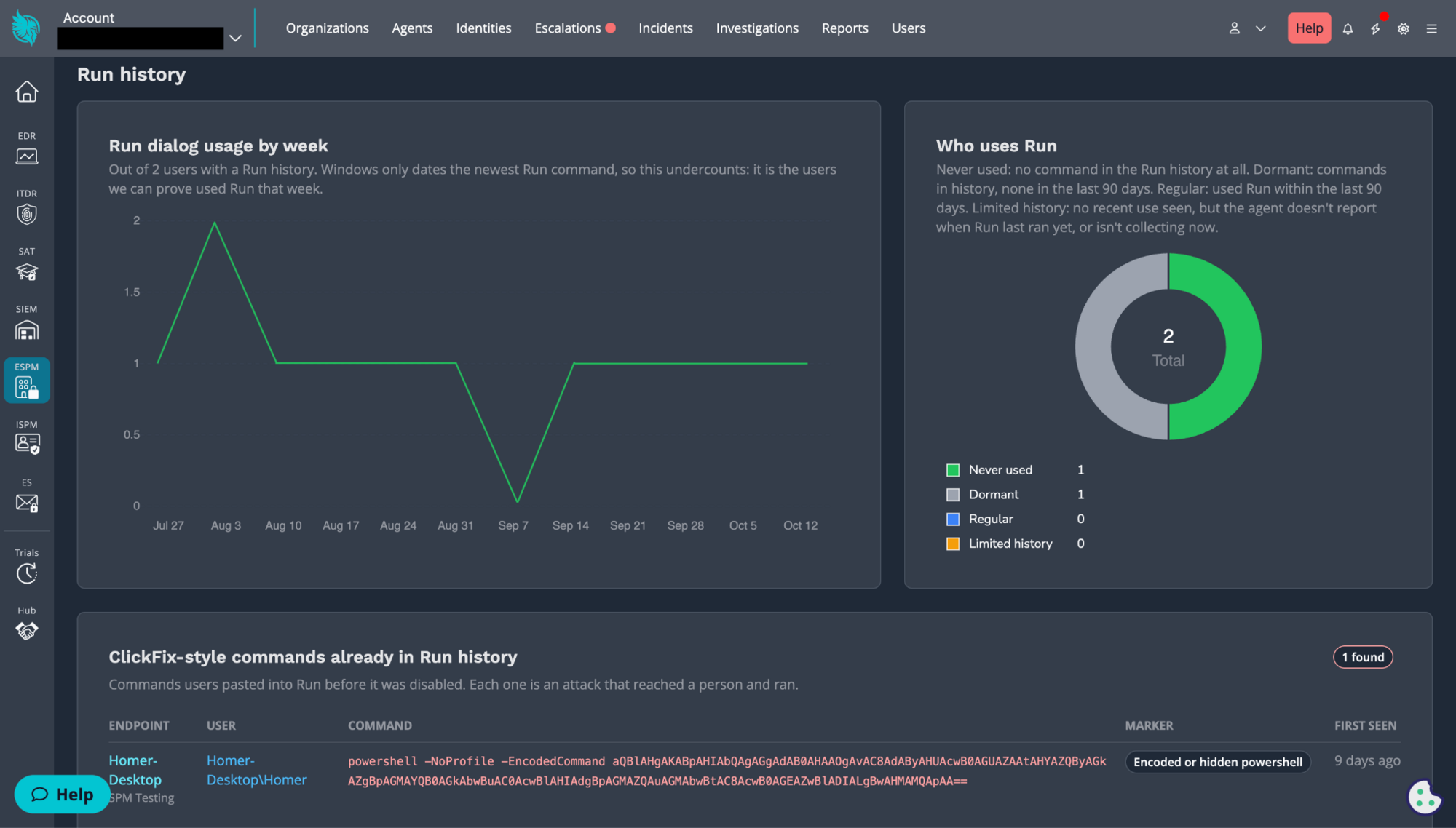
The ESPM Attack Reduction dashboard and how many users are utilizing the Run dialog per week.
2. Turn on blocking
When you're ready, turn on blocking at the account or organization level. Attack Reduction then turns off the "Windows key + R" shortcut for users who don't need it. Users who rely on the Run dialog can keep it, and you can switch any user between allowed and blocked at any time.
3. Users get a clear message, not a mystery
If a blocked user presses Windows key + R, nothing runs. Instead, they see a pop-up explaining that the action was blocked for security reasons and asking them to contact their IT support team or take Security Awareness Training. Either way, the attack stops, and a confused user gets a quick security lesson.
4. You get a record of what they almost ran
When a blocked user presses Windows key + R, Attack Reduction also captures what was on their clipboard. If someone was about to paste a malicious command, you'll have it on record, which helps you spot users who are being targeted and follow up.
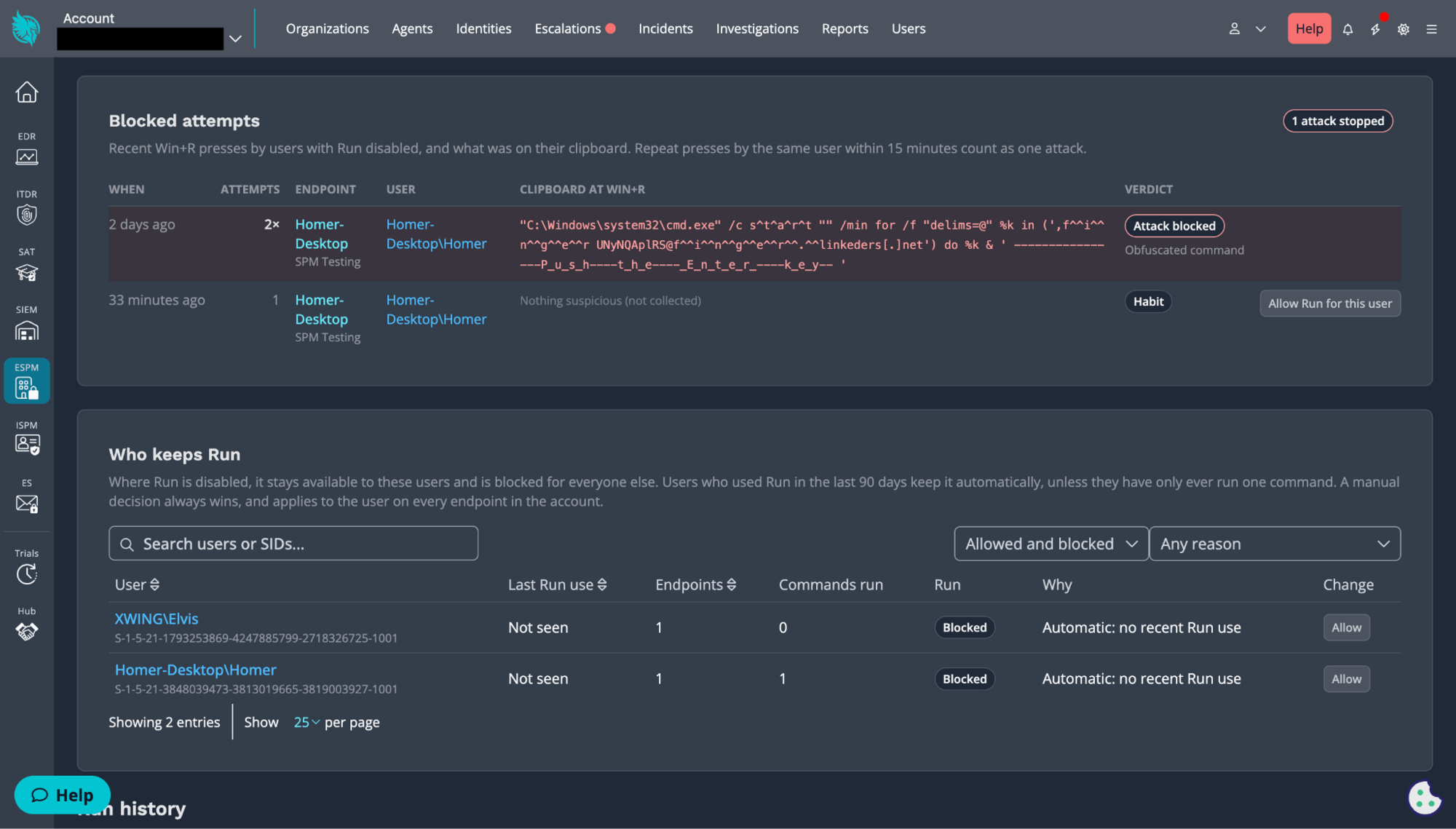
The ESPM Attack Reduction dashboard and a list of blocked attempts by users to utilize the Run dialog.
What Attack Reduction doesn't do
We want to be clear about the limits here, because ClickFix is a moving target.
Blocking the Run dialog disrupts the most common version of ClickFix. It doesn't stop every one. Attackers can, and already do, tell users to paste commands into File Explorer's address bar, Windows Terminal, Command Prompt, or PowerShell instead.
That's why the Run dialog is the first step, not the last one. Every path we close makes the attack harder to pull off, and the planned Command Prompt and PowerShell controls are aimed at exactly those next moves. Attack Reduction also works best alongside the rest of your defenses: Managed EDR to catch what gets through, and Managed SAT so users know a real CAPTCHA will never ask them to paste a command.
Get started with Attack Reduction
Attack Reduction is available now as part of Huntress Managed ESPM Early Access for existing Huntress partners and customers.
Not in ESPM Early Access yet? Click the ESPM icon in the left-hand menu of your Huntress portal to enroll. Then let Attack Reduction collect a baseline so you can see which users actually need the Run dialog before flipping on Blocking.
As Early Access partners put this capability to work, their feedback will decide which Windows features we tackle next and how we build those controls.
Have ideas or requests? Share them at feedback.huntress.com/espm. And stay tuned. There's a lot more coming to Managed ESPM.