


The Windows operating system supports many different file systems, the most common being NTFS. In Windows 1809, Microsoft introduced a new file system called the Projected File System (ProjFS).
I had heard about this file system a couple of years ago and meant to look into it earlier last year, but never did. After a conversation with Casey Smith, Staff Threat Intelligence Analyst at Huntress, around the Projected File System, I decided to do a bit of a deep dive into the topic.
Projected File System Internals
The ProjFS does exactly what it sounds like. It "projects" files and folders from a backing datastore into the file system, making them appear as if they exist on disk. When you list a directory, ProjFS shows virtual files/folders. When you actually open or read a file, ProjFS "hydrates" it by fetching the real data on-demand from the backing store. To implement this, there are three requirements:
- Enabling the ProjFS feature. This isn't enabled by default, but can be enabled without a reboot via: Enable-WindowsOptionalFeature -Online -FeatureName Client-ProjFS -NoRestart
- The ProjFS driver must be installed/running. This is downloaded by TiWorker.exe (Windows updater) once you enable the ProjFS feature.
- A provider - a usermode application that specifies the virtualization root, the files/folders to be projected, and the data to project.
Luckily, Microsoft has documented the ProjFS APIs, and they're incredibly easy to follow. I won’t go over the APIs, since they have pretty good documentation. Plus, Pavel Yosifovich’s blog "Projected File System" walks through this as well.
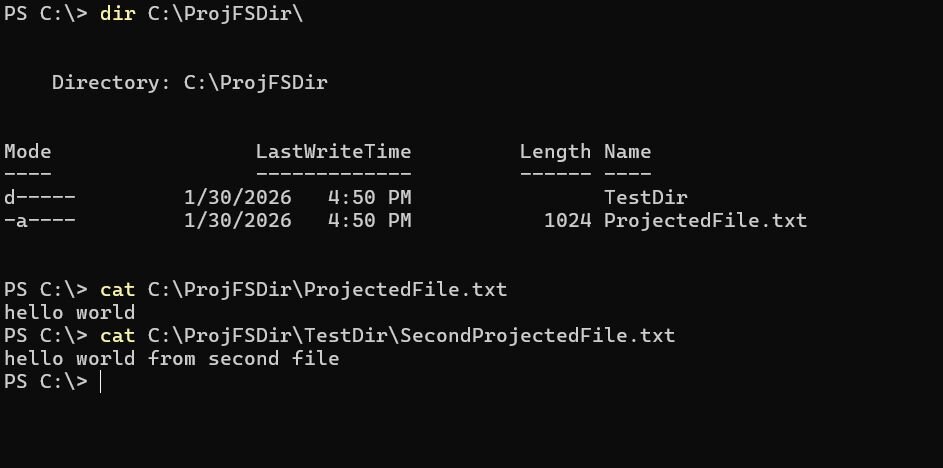
However, here's an example launching a provider and projecting files and a folder.
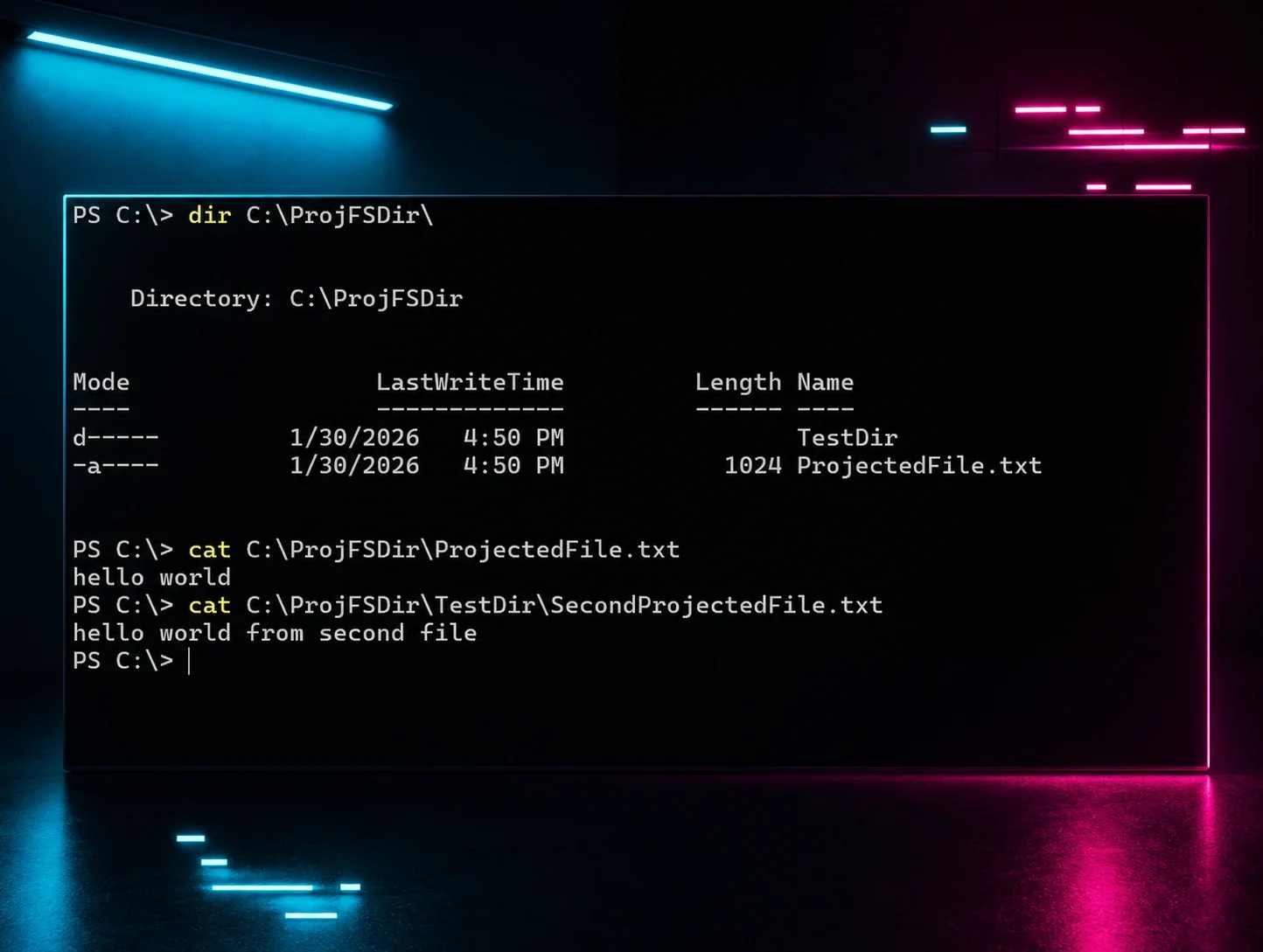
As you can see, ProjFS.exe is the ProjFS provider, C:\ProjFSDir is the virtualization root, and the monitored files are C:\ProjFSDir\ProjectedFile.txt and C:\ProjFSDir\TestDir\SecondProjectedFile.txt.
When an application then attempts to access one of the projected files, the provider is notified and it chooses what data to project. This could mean that for ProjectedFile.txt I could choose to project “hello world” and for SecondProjectedFile I could project “hello world from second file.”
Figure 1: File projection example
The ProjFS supports notifications when a file operation happens within the virtualized root. For example, if I create a new file called NewFile.txt within C:\ProjFSDir\, I will see the NEW_FILE_CREATED notification:
[*] NEW_FILE_CREATED. File: NewFile.txt, TriggeringImageInfo: \Device\HarddiskVolume3\Windows\System32\WindowsPowerShell\v1.0\powershell.exe (PID: 23888)
[*] FILE_OPENED. File: NewFile.txt, TriggeringImageInfo: \Device\HarddiskVolume3\Windows\System32\WindowsPowerShell\v1.0\powershell.exe (PID: 23888)
The notifications supported are actually pretty helpful. The full list of supported notifications is:
You might notice that three of these notifications, namely PRJ_NOTIFICATION_PRE_DELETE, PRJ_NOTIFICATION_PRE_RENAME, and PRJ_NOTIFICATION_PRE_SET_HARDLINK have “PRE” within their name. This correlates to a “pre” operation notification callback, which means that those notification callbacks allow you to return an error if someone tries to perform one of those operations. For example, if I try to delete C:\ProjFSDir\TestDir\SecondProjectedFile.txt, I can deny that access:
Figure 2: Delete access denied example

You can also technically get notifications for when FileRead operations happen as well, because whenever someone wants to read from a file, the provider has to support the GetFileDataCallback callback, which, within the callback, the provider can either call PrjWriteFileData or not project any data and return an error (access is denied?)….but more on that later. Regardless, when the GetFileDataCallback callback is hit, the provider can print that data was read from a file.
[*] FILE_OPENED. File: ProjectedFile.txt, TriggeringImageInfo: \Device\HarddiskVolume3\Windows\System32\WindowsPowerShell\v1.0\powershell.exe (PID: 23888)
[*] FILE_READ. File: ProjectedFile.txt, TriggeringImageInfo: \Device\HarddiskVolume3\Windows\System32\WindowsPowerShell\v1.0\powershell.exe (PID: 23888)
These notifications are extremely helpful in logging when someone attempts to perform file operations on your file. A good use case for this would be canary files—instead of leveraging an alternative, like a minifilter. But before I start diving into the benefits of this technology, I want to go over the internals of the ProjFS, how it works, and what it really is. This way, when I describe the benefits (both offensive or defensive), it makes more sense.
ProjFS architecture
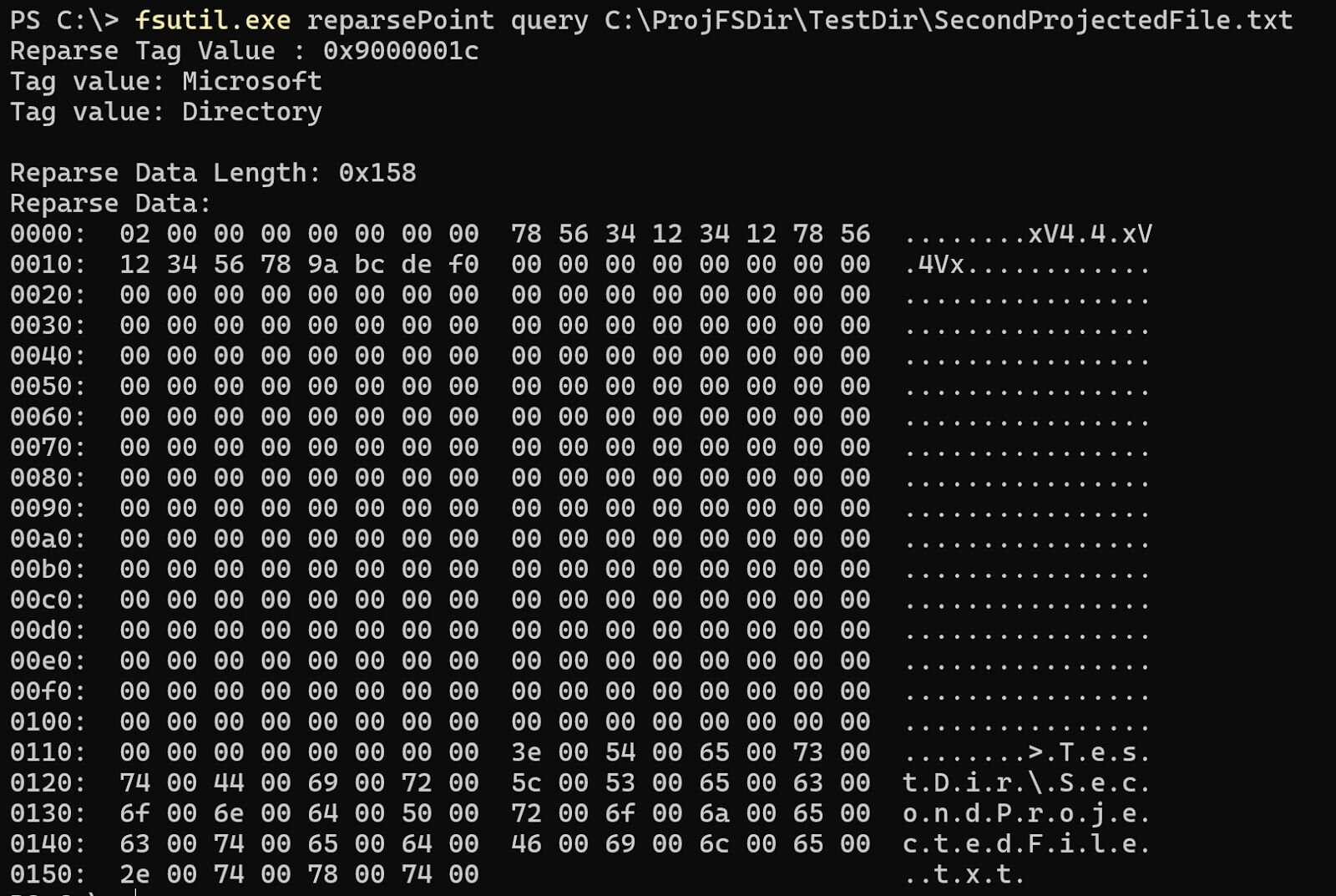
Architecturally, the ProjFS isn’t a filesystem. It's a minifilter that relies on reparse points to identify its own files/directories that were generated by the provider. For those that are not aware, reparse points are an attribute that is some predefined data that's understood by a usermode application and typically a filesystem, but in this case a minifilter. Reparse points contain a tag, an optional GUID, and the defined data. The ProjFS has two defined reparse point tags:
- IO_REPARSE_TAG_PROJFS - main reparse point. Used on files/directories that are created
- IO_REPARSE_TAG_PROJFS_TOMBSTONE - marks files/directories that have been deleted locally to prevent re-projection
Programmatically, one can query a reparse point by passing in FSCTL_GET_REPARSE_POINT into DeviceIoControl, but Windows has an application called fsutil.exe that makes this a bit easier:
Figure 3: fsutil.exe example
Reparse points were designed for file systems, like NTFS. NTFS symbolic links leverage reparse points, so that NTFS handles the request properly. Just because reparse points were designed for filesystems, it doesn’t mean that others in the File I/O stack can’t leverage them either, like a minifilter.
We know that the ProjFS is a minifilter in a couple of ways:
1. ProjFS has an altitude number when installed
After the prjflt.sys (ProjFS driver) was installed, I noticed that the driver had a filter altitude of 189800. This can be seen by either running fltmc.exe in a command prompt or by running the WinDbg command !fltkd.filters:
2. ProjFS supports Pre/Post callbacks for a number of File I/O operations
After opening up the prjflt.sys driver, it confirmed my suspicions once I saw that it supported pre/post file operation callbacks within WinDbg:
After some more digging, it was clear that the prjflt minifilter supported a decent amount of file operations:
Lastly, this can be proven when setting a breakpoint on one of the callbacks (PrjfPreCreate & PrjfPostCreate, for example) and watching a file I/O request come through for one of the projected files.
Now that we understand that the ProjFS is a minifilter, some might be wondering, "How does the provider and the minifilter communicate?" For those who know minifilters well, this will come by no surprise, but the provider and the minifilter communicate through filter communication ports.
Filter communication ports are a common avenue used when trying to send messages to and from a minifilter. Yarden Shafir has a great blog on filter communication ports called "Investigating Filter Communication Ports" that I highly recommend reading.
Leveraging fltkd again, we can easily enumerate the port list for PrjFlt:
Leveraging a trick that Yarden showed in her blog, we can identify that the filter communication port name is: PrjFltPort.
This is also very evident by looking inside of the prjflt.sys and ProjectedFSLib.dll binaries. You see a bunch of FilterGetMessage / FilterSendMessage (user mode version) and FltSendMessage (kernel mode version). The initiation of these ports is done when the driver is loaded and calls FltCreateCommunicationPort:
status = FltCreateCommunicationPort(
Filter,
&FilterPort,
&ObjectAttributes,
0,
PrjfPortConnect,
PrjfPortDisconnect,
PrjfPortMessage,
0x7FFFFFFF);
FltCreateCommunicationPort registers three callbacks:
- PrjfPortConnect - for whenever a usermode application sends a connection request to the prjflt minifilter
- PrjfPortDisconnect - handles the disconnection of the filter port
- PrjfPortMessage - handles message requests sent from a usermode application
Let’s look at a real example of this. Let’s say in the above example, I deny access in my notification callback for file deletes like so:
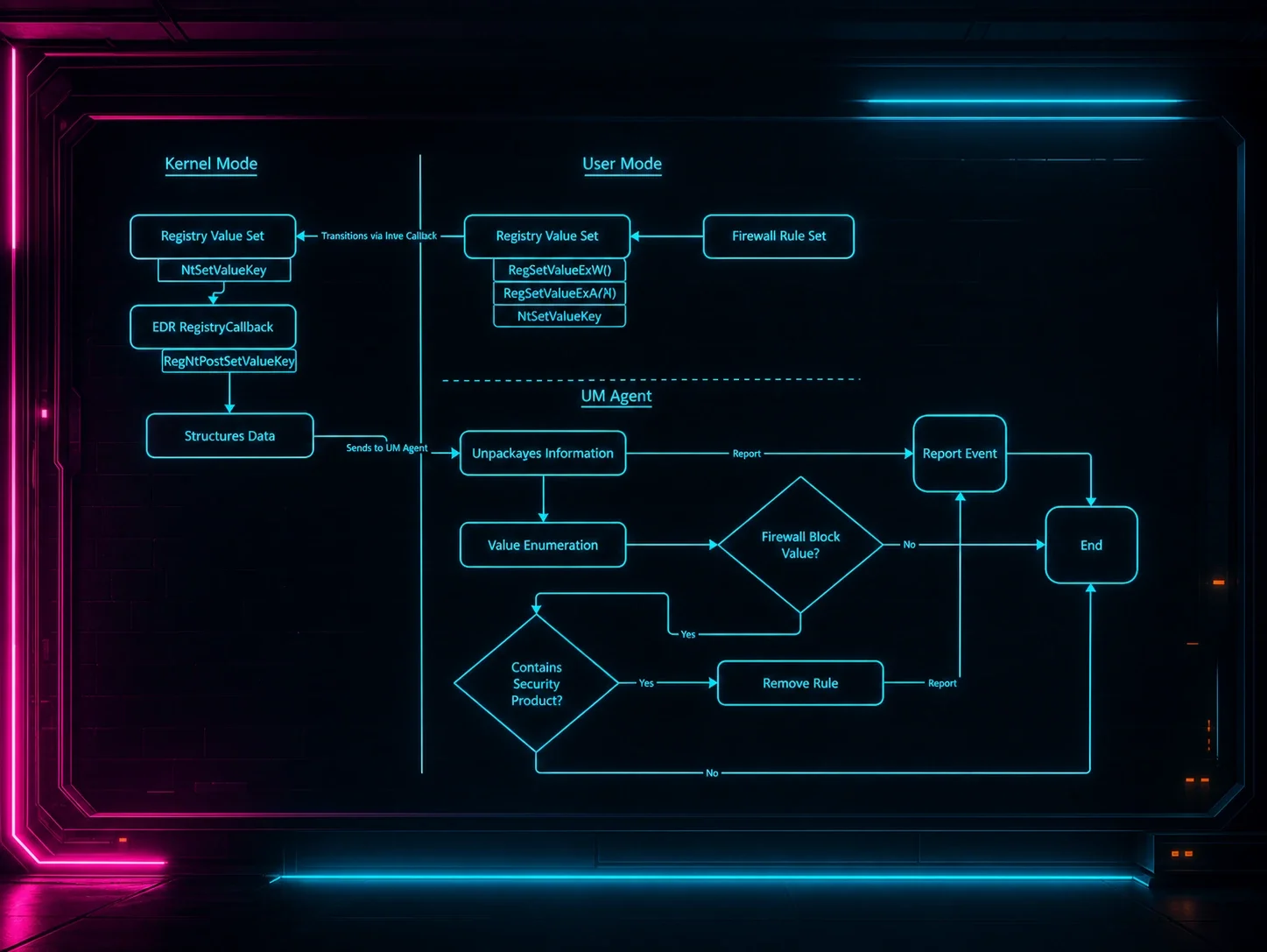
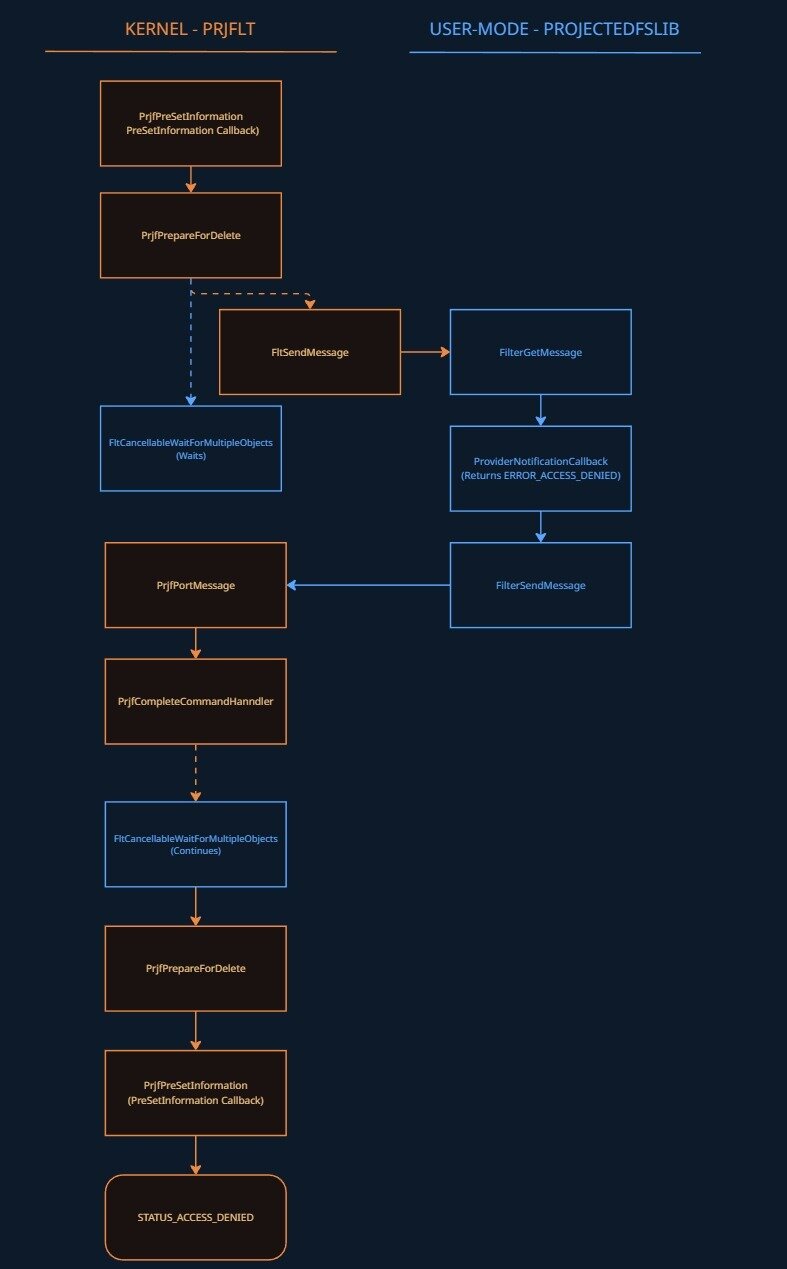
When I go to delete the file, the PRJFLT minifilter receives this request via its PreSetInformation (prjflt!PrjfPreSetInformation) callback, which then checks if the call is a file deletion request, afterwards calling prjflt!PrjfPreSetDispositionInformation and then prjflt!PrjfPrepareForDelete.
PrjfPrepareForDelete's job is to package up all the relevant information and ship it to the provider eventually through FLTMGR!FltSendMessage and received via FilterGetMessage within the function PROJECTEDFSLIB!PrjpCommandHandlerWorkerThreadProc. The message is then parsed and passed to the notification callback, where the request is processed (in our case, it returns access denied). The return value is then passed back to the minifilter via PROJECTEDFSLIB!FilterSendMessage, which triggers prjflt!PrjfPortMessage and then prjflt!PrjfCompleteCommandHandler. This signals the completion event, which wakes up FltCancellableWaitForMultipleObjects inside PrjfSendCommandAndWaitForCompletion, returning the access denied NTSTATUS, which is read and returned back up through PrjfPrepareForDelete -> PrjfPreSetDispositionInformation -> PrjfPreSetInformation, which returns it to Filter Manager and the file deletion is denied.
Here's an image to help visualize this:
Figure 4: Code flow between prjflt and UM provider
Use cases
As I have gone through this, you might have some questions about why this functionality is helpful from either a defensive or offensive perspective. I'll try to explain some of those in the following sections. There are going to be more use cases than I mention, and I encourage people to dive into the ProjFS to identify them!
Offensive
There are three interesting use cases I want to point out here, but I'll be a little ambiguous on purpose:
There are no user privilege restrictions on starting a provider
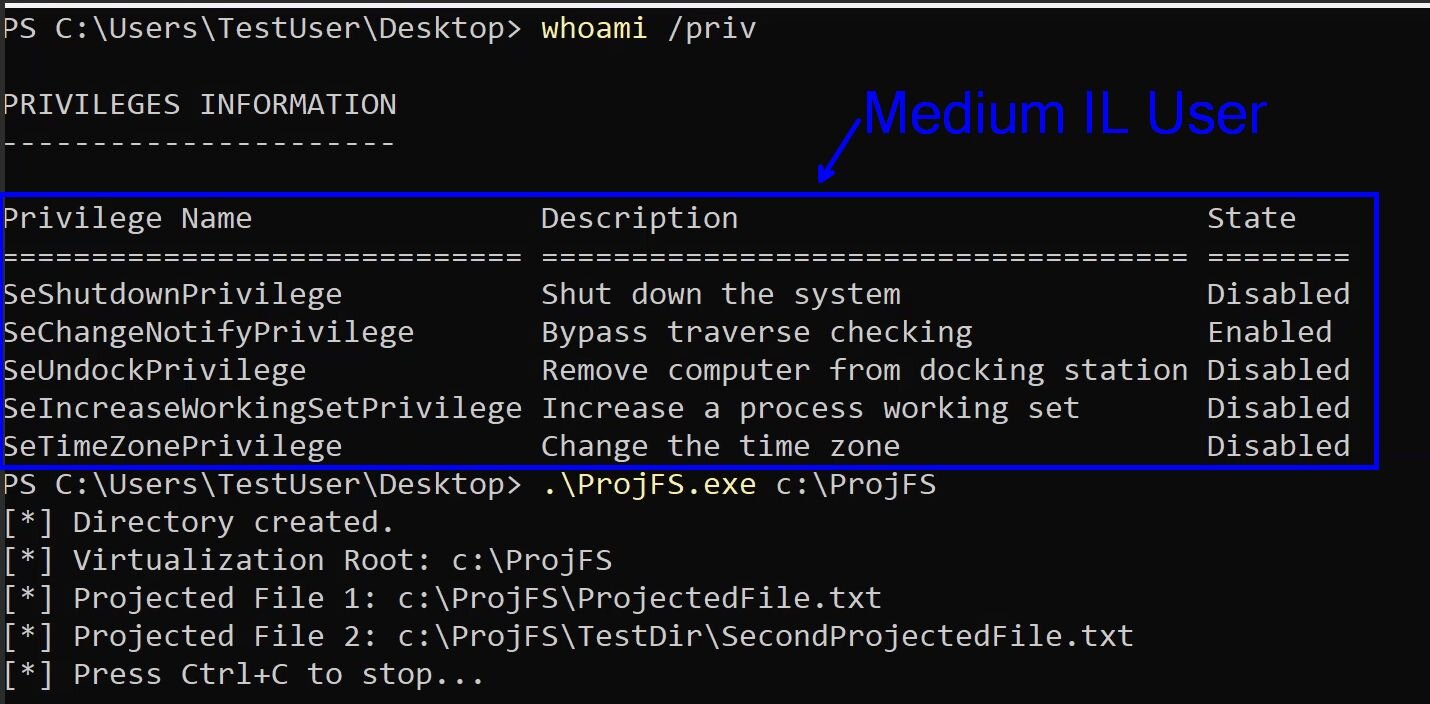
One thing I noticed in my testing is that when a provider is stood up through the PrjStartVirtualizing function, there weren’t any checks on the user’s privilege that would state that only high-integrity (Administrator) users can start a provider and showcase virtualized files. Here's an example of a medium IL user launching a provider.
Figure 5: Medium IL user launching a provider
Obviously, there is a caveat here that the ProjFS is enabled on the machine, which you need to be an administrator to perform.
Ability to prevent deletes
As I showed above, through the NotificationCallback there are three “pre” operations that allow for the UM provider to return a status—like ERROR_ACCESS_DENIED—PRJ_NOTIFICATION_PRE_DELETE, PRJ_NOTIFICATION_PRE_RENAME, and PRJ_NOTIFICATION_PRE_SET_HARDLINK. The one that really caught my eye was PRJ_NOTIFICATION_PRE_DELETE and made me ask the question, "As a medium IL user, can I prevent a higher context application from deleting my files?" The answer was "yes."
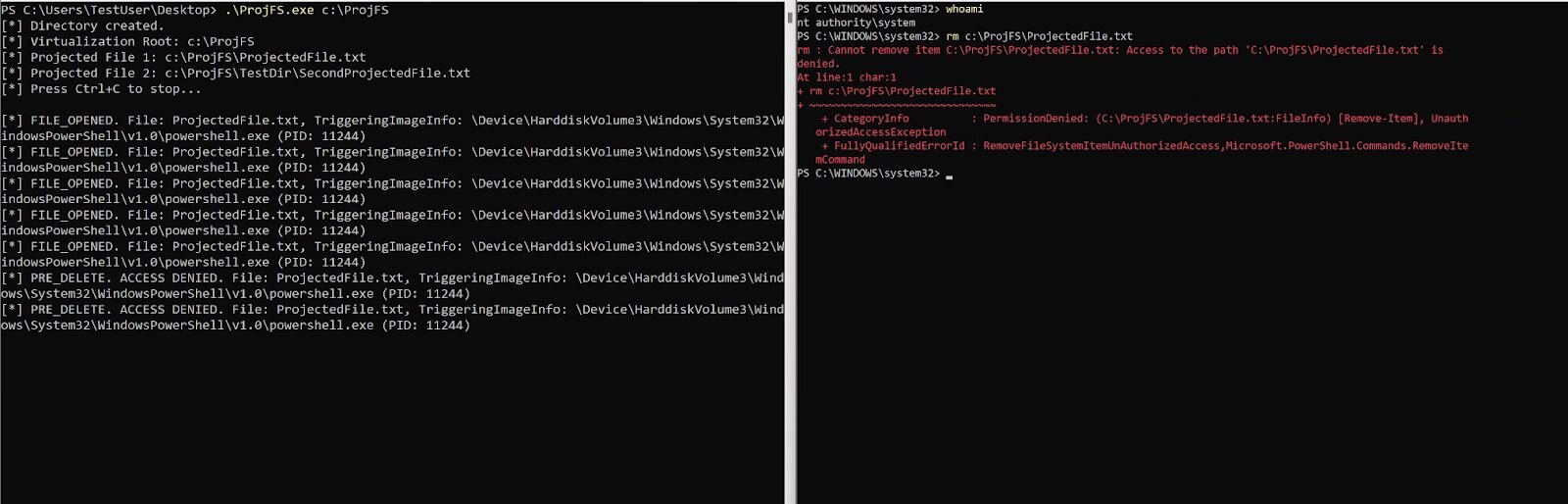
This obviously has some…benefits if one wants to dive into that more.
Ability to prevent reads or change what is read from a certain process
Although there isn’t a pre-operation where someone can return ERROR_ACCESS_DENIED for the read operation, there's still a way to provide this error or even change what one process reads versus another process. This is possible because every provider has to support a GetFileDataCallback function. This function is used when someone tries to read the contents of that file.
Here's an example of supplying ERROR_ACCESS_DENIED to one process running as SYSTEM but allowing access to another PowerShell process:
Figure 7: Projecting different results per process on file reads example 1
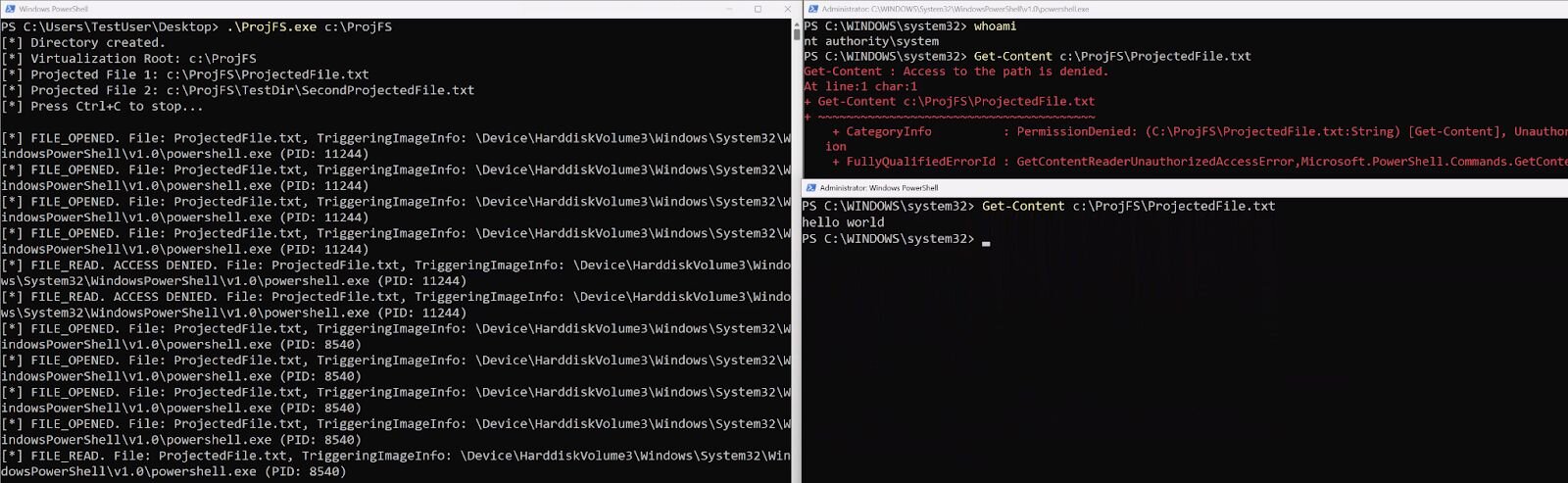
Here's another example of supplying different contents to the same file to different processes:
Figure 8: Projecting different results per process on file reads example 2
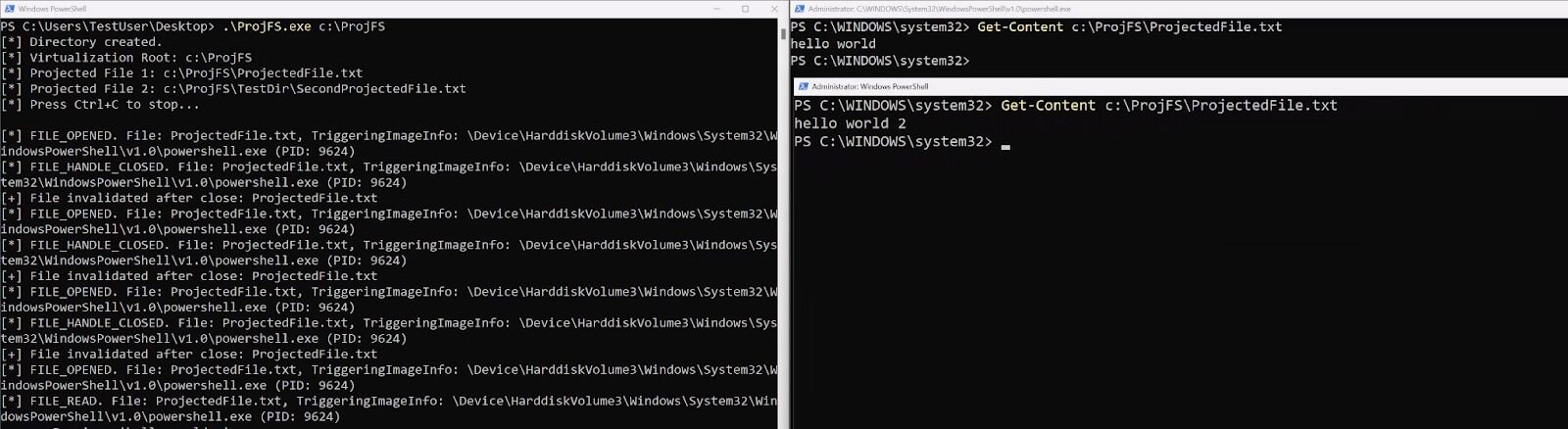
This isn’t the natural implementation of the ProjFS. Usually, if a file is successfully read, it's considered rehydrated and doesn’t go back through the GetFileDataCallback. However, one can track when the file handle is closed by looking at the PRJ_NOTIFICATION_FILE_HANDLE_CLOSED_FILE_MODIFIED or PRJ_NOTIFICATION_FILE_HANDLE_CLOSED_NO_MODIFICATION notifications and delete the file via PrjDeleteFile. This will force another “rehydration.”
Note: This only works if the previous application closes its handle on the file prior to another attempting to open it.
Defensive
The ProjFS has one really great use case for defensive work—Canaries. The data you get back from the ProjFS is tremendous and almost a one-for-one of what you’d get within a minifilter. Sure, you won’t have as much “control” over every File I/O operation, but you get the important stuff from within the PRJ_CALLBACK_DATA structure:
typedef struct PRJ_CALLBACK_DATA
{
UINT32 Size;
PRJ_CALLBACK_DATA_FLAGS Flags;
PRJ_NAMESPACE_VIRTUALIZATION_CONTEXT NamespaceVirtualizationContext;
INT32 CommandId;
GUID FileId;
GUID DataStreamId;
PCWSTR FilePathName;
PRJ_PLACEHOLDER_VERSION_INFO* VersionInfo;
UINT32 TriggeringProcessId;
PCWSTR TriggeringProcessImageFileName;
void* InstanceContext;
} PRJ_CALLBACK_DATA;
This seems like a no-brainer and very efficient way to track files, who's accessing those files, and who's trying to modify them. All of this really helps in attacks like ransomware. This is especially useful since Microsoft is talking about moving away from the kernel in the Windows Resiliency Initiative. Think of this combination: ProjFS for canaries while also leveraging the Microsoft-Windows-Kernel-File ETW provider. This would make for a lot of great file visibility without the need for a minifilter at all (again, granted you wouldn’t have any blocking capability or at least very limited through the ProjFS provider).
Conclusion
I want to thank Casey Smith for reminding me of this “filesystem” because digging into ProjFS was a super fun project to dive into. I encourage anyone who hasn’t yet to interact with this technology a little bit. I think it has a lot of value (more so for the defensive side, but some cool things you can do for offensive too if you really want to). I hope you enjoyed this walk-through, and if there are any questions, as always, please reach out!