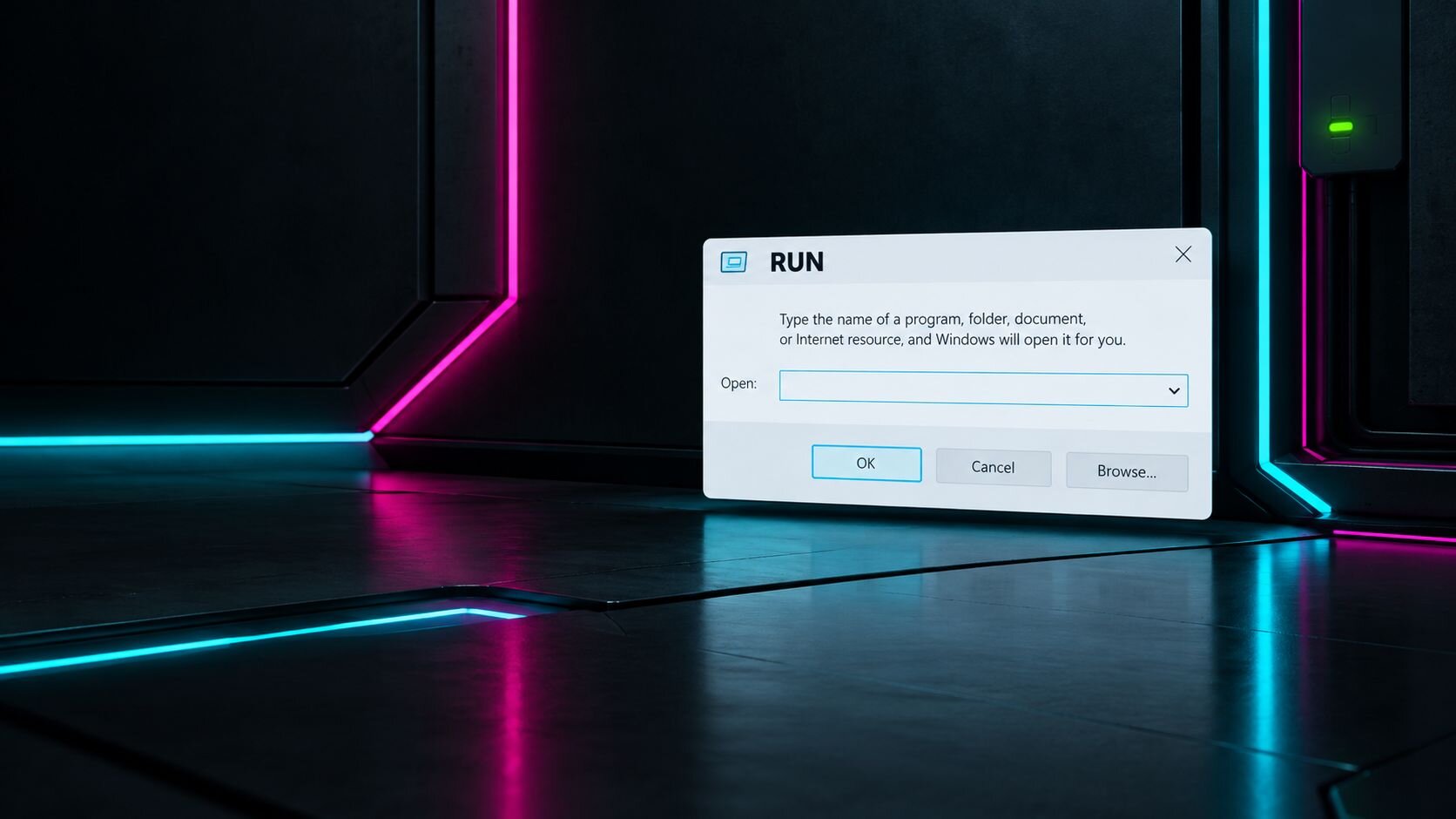
The Windows Run dialog is a built-in Windows feature that lets you quickly open an app, file, folder, or system tool by typing its name or location and then pressing the Windows key + R. The feature is useful, but it also enables attackers to trick people into launching harmful commands.
In short: Run is a normal part of Windows—not a security flaw. The risk comes from entering or pasting something you don’t understand or weren’t expecting.
What does the Run dialog do?
The Run dialog is a small text box for launching items directly, without navigating through menus. For example, someone might use it to open a familiar app or a Windows utility. Microsoft lists Windows key + R as the shortcut for opening Run in Windows 10 and Windows 11. Learn more about Microsoft’s Windows keyboard shortcuts.
Run is different from Command Prompt or PowerShell, but it can launch those tools and other programs. What happens next depends on what’s entered and the permissions of the account running it. Opening Run does not, by itself, give someone administrator access.
What are the risks of using Run?
For ordinary, familiar tasks, Run is convenient. The risk is that a command entered there can start a program or action the user didn’t intend. A malicious or misleading instruction could lead to malware, data theft, or other compromise—especially if the user is tricked into running a command with elevated privileges.
A common example is ClickFix, a social-engineering technique. A deceptive web page may imitate a CAPTCHA, software update, or error message and tell the user to open Run, paste text, and press Enter. The pasted text may launch harmful code.
Watch the video below to see how the Huntress SOC and detection engineering team break down ClickFix: the most convincing lures, the variety of final payloads, and the infrastructure attackers use to host these campaigns.
Note that an attacker doesn’t need to exploit a flaw in Run if they can persuade someone to follow certain instructions. The same caution applies to commands pasted into Terminal, PowerShell, or similar tools.
Best practices for users
Don’t paste commands from a website, email, chat, ad, or pop-up just because it tells you to. Treat requests to open Run and paste text as a warning sign, especially when framed as a verification, update, or urgent fix.
Pause when a prompt asks you to run something you didn’t seek out. Close the page or message and contact your IT team through a known, trusted channel.
Don’t run commands you don’t understand. If a legitimate work task requires one, confirm the exact instruction with your IT team before proceeding.
Don’t approve an unexpected administrator prompt. Stop and verify the request first.
Report suspicious instructions quickly. If you already pasted or ran something, tell IT or security what happened and when. Don’t try to hide it or clean up the device yourself.
Best practices for organizations
Educate users on the specific behavior to watch for. Make clear that legitimate CAPTCHA or “I’m not a robot” checks should not ask people to open Run, Terminal, or PowerShell and paste a command.
Apply controls appropriate to your environment.Application control and restrictions on scripting tools can reduce risk, but should be tested against business needs and managed by IT.
Make reporting easy and respond without blame. Fast reporting helps security teams investigate activity and limit impact.
Monitor for suspicious command execution. Security teams can look for unusual programs launched from Windows Explorer, unexpected scripting-tool activity, and other signs that a user may have been tricked into running a command.
Disabling Run alone isn’t a complete defense: users and attackers may use other ways to start programs. Pair technical controls with practical user security awareness training and a clear response process.
Bottom line
The Run dialog is a normal Windows shortcut for launching programs and tools. Use it when you know what you’re opening. If a website or message unexpectedly tells you to open Run and paste something, stop and verify the request instead.
What is Event Logging? Cybersecurity Logging Explained
Learn event logging fundamentals for cybersecurity. Discover log types, best practices, and how event logs help detect threats and support incident response.
Understand the critical differences between the deep web and dark web. Learn how cybersecurity teams monitor, mitigate threats, and secure sensitive data.