
Protect What Matters
Secure endpoints, email, and employees with the power of our 24/7 SOC. Try Huntress for free and deploy in minutes to start fighting threats.
How Huntress Detects Hidden Inbox Rules Across Microsoft 365
Written by: Nadine Rozell
Published: 12/05/2025

Hidden inbox rules are one of the sneakiest threats in Microsoft 365 today. They're automation filters that run invisibly in a mailbox, letting attackers silently divert, delete, or forward sensitive emails without being seen by standard monitoring tools.
You can't see them in Outlook or the Exchange Online admin center. They just work in the background, making them perfect for business email compromise (BEC) and data theft.
Huntress finds these threats by combining automated detection with human analysis. We give you protection that goes beyond what traditional Microsoft 365 security tools can detect.
Hidden inbox rules are a go-to tool for attackers. They use them to get persistent access and mess with email flow without triggering alerts.
The security risk is serious. These tactics are the backbone of BEC, which the FBI’s 2024 Internet Crime Report identified as the second costliest cybercrime, accounting for $2.77 billion in losses. Hidden rules can auto-delete critical emails—like payment confirmations or vendor invoices—before anyone sees them. Or, they can forward sensitive info to an attacker's external address, leading to massive data theft.
The main challenge is detection. Standard M365 admin tools only show some inbox rules, leaving security teams blind to the most dangerous ones. This gap creates a perfect environment for threats that can run undetected for months.
|
Rule Type |
Visibility in Standard Tools |
Common Attack Uses |
|
Standard Inbox Rules |
Visible in Outlook, Exchange Admin |
Legitimate automation, basic email management |
|
Hidden Inbox Rules |
Not visible in standard interfaces |
Auto-delete security alerts, forward sensitive data, filter IT communications |
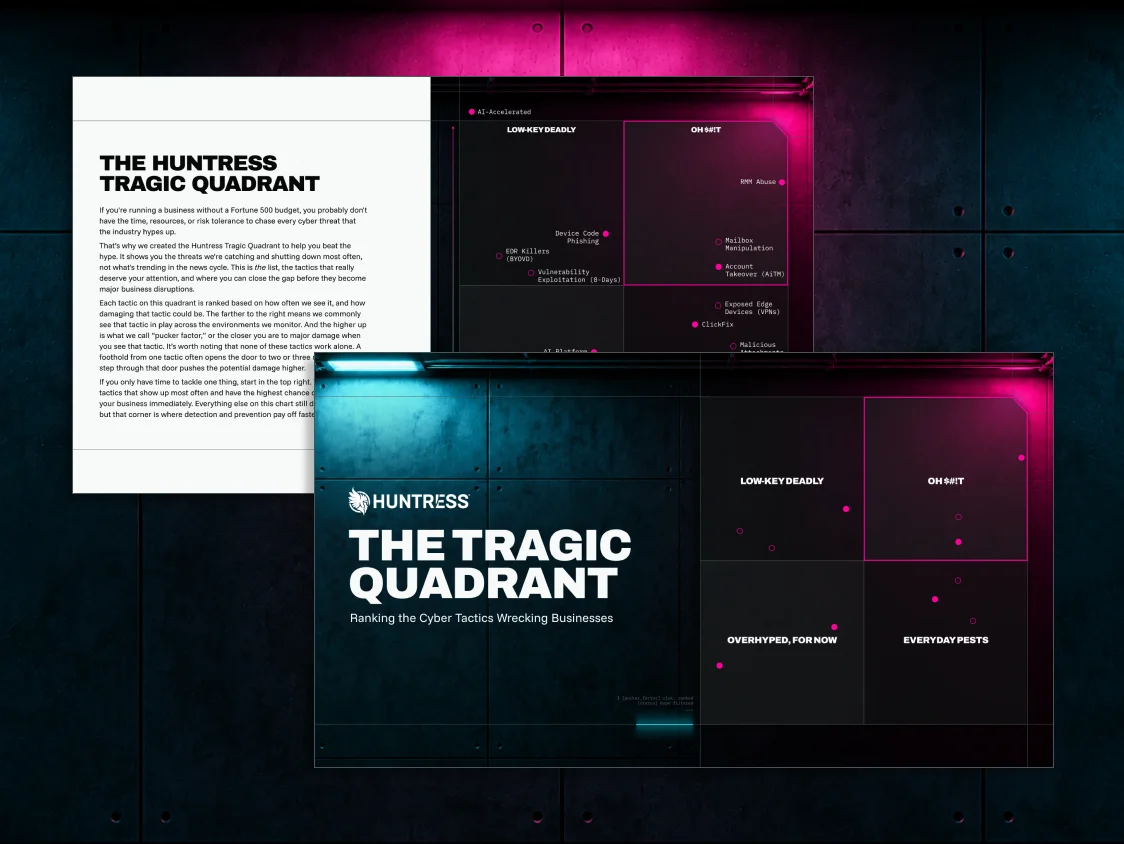
Hidden inbox rules are one way attackers turn a familiar workflow into quiet business disruption. The Huntress Tragic Quadrant shows where mailbox manipulation ranks by prevalence and potential damage, so teams can prioritize detection and prevention before the first sign is a missing payment.
PowerShell is the most direct manual way to find hidden inbox rules. The Get-InboxRule -IncludeHidden command is the industry standard for finding rules that are invisible to normal admin tools.
The -IncludeHidden parameter is key because it forces PowerShell to query the mailbox storage directly, bypassing the filters that hide malicious rules. This shows you all the rules in a mailbox, including those made through MAPI manipulation.
But running this manually across hundreds or thousands of accounts isn't practical. It's a time-consuming, one-off check that has to be scripted and run periodically just to find suspicious patterns.
Step | PowerShell Command | Purpose |
1 | Connect-ExchangeOnline | Establish authenticated session |
2 | Get-Mailbox -ResultSize Unlimited | Retrieve all mailboxes |
3 | Get-InboxRule -Mailbox [email protected] -IncludeHidden | Surface all rules including hidden ones |
4 | Export-Csv -Path "InboxRules.csv" | Document findings for analysis |
Step 2: The deep dive (leveraging MAPI editor)
For an even deeper forensic-level inspection, MAPI editors let you access the underlying Exchange storage properties that standard clients can't reach.
Tools like MFCMAPI can find rules by looking directly at their storage properties, specifically the PR_RULE_MSG_NAME and PR_RULE_MSG_PROVIDER fields that hold the actual rule logic. This deep look can find sophisticated hiding techniques that even PowerShell might miss.
However, this isn't intended for routine checks. Using a MAPI editor is a labor-intensive process that takes special expertise and high-level permissions. It's typically only used for a targeted incident response, not for everyday monitoring.
Pros:
Deepest level of mailbox rule inspection available
Reveals sophisticated hiding techniques
Cons:
Requires specialized technical expertise
Time-intensive for large environments
Limited automation capabilities
Step 3: The Huntress way (continuous)
Instead of relying on manual scripts, Huntress builds this detection directly into its platform. Our telemetry includes signals from both Azure Active Directory and Microsoft Exchange, covering a range of events from role escalations to suspicious inbox rules and mailbox permission updates.
This approach does two key things:
Finds Existing Rules: Huntress Managed ITDR is built to detect existing malicious inbox rules from the moment a tenant is onboarded. This includes finding "Shadow Workflows," which are malicious rules attackers use to hide activity by auto-forwarding or deleting messages.
Correlates with Behavior: Huntress doesn't just look for a rule; we look at the whole picture. Our 24/7 SOC analysts correlate the creation of a suspicious rule with other activity, like a login from an unexpected location, to confirm a real compromise.
Malicious Rule Detection Workflow:
Log Collection: Huntress gathers audit events for rule creation and other Exchange activities.
Pattern Analysis: The platform automatically flags rules that target sensitive keywords (like "invoice") or move mail to unusual folders. Attackers specifically use these tactics, sometimes moving emails to less-viewed folders like "RSS Feeds" to hide their activity from the user.
Behavioral Correlation: The system connects the new rule to other suspicious signals, like a strange login or privilege escalation.
Expert Review: A human Huntress SOC analyst reviews the correlated data to verify the threat and rule out false positives.
Response: The SOC initiates a response, which can include disabling the rule and isolating the account.
Step 4: Educating users on safe email handling
Teaching users about safe rule creation helps stop attackers from exploiting a simple gap in awareness. After all, the 2025 Verizon Data Breach Investigations Report found that 68% of breaches involve human error. Attackers often use phishing campaigns that trick users into creating their own forwarding rules.
Good security awareness training needs to cover these specific scenarios and teach your team what to look for.
User Best Practices for Email Rule Security:
Never create forwarding rules to external email addresses without IT approval.
Report any unusual requests to modify email settings or create automation.
Regularly review existing rules and remove unnecessary automation.
Escalate suspicious rule-related prompts or emails to security teams immediately.
Step 5: Responding to suspicious inbox rules with Huntress
When Huntress detects a suspicious inbox rule, our 24/7 SOC analysts verify the threat and take action.
The response is swift and documented. As part of a managed response, Huntress can revoke the compromised user session and disable suspicious email forwarding or inbox rules to stop the malicious activity. The analyst then handcrafts an incident report to communicate the impact and severity, so you know exactly what happened and what to do next.
Response Stage | Automated Actions | Analyst Activities | Customer Communication |
Alert Generation | Rule detection and initial triage | Threat verification and context analysis | Immediate notification of suspicious activity |
Containment | Session revocation, rule disabling | Impact assessment, evidence collection | Detailed findings and recommended actions |
Remediation / Recovery | Monitoring for re-compromise | Manual remediation guidance; Post-incident analysis | Step-by-step recovery instructions; Final report |
The Huntress Identity Security Assessment gives organizations visibility into hidden inbox rules (which we call "Shadow Workflows"), risky login patterns, and rogue applications across their Microsoft 365 environment.
Huntress finds malicious inbox rules by analyzing configuration data and telemetry from Microsoft Exchange. We scan for "Shadow Workflows"—rules attackers use to auto-forward or delete messages—and our SOC analysts correlate this with other suspicious activity, like strange logins, to confirm a real threat.
Huntress identifies rules that forward emails externally, auto-delete important messages, or filter emails with sensitive keywords (like "invoice" or "payment"). These are all common patterns used in BEC and other identity-based threats.
Organizations can get a Huntress Identity Security Assessment to get a detailed, point-in-time report on risks in their M365 environment. The report highlights "Shadow Workflows" (malicious inbox rules), as well as other threats like risky logins and rogue applications.
The recommended response includes disabling or deleting the unauthorized rule, resetting the user's credentials, and revoking their active sessions to kick the attacker out.
As part of a managed response, the Huntress SOC has the ability to disable suspicious email forwarding or inbox rules to stop an active threat.